Updated May 12, 2026
How do I export cloud diagrams from the CLI?
Quick answer
Use the Cloudeval CLI diagram export workflow with a project ID, layout, format, label option, and output path.
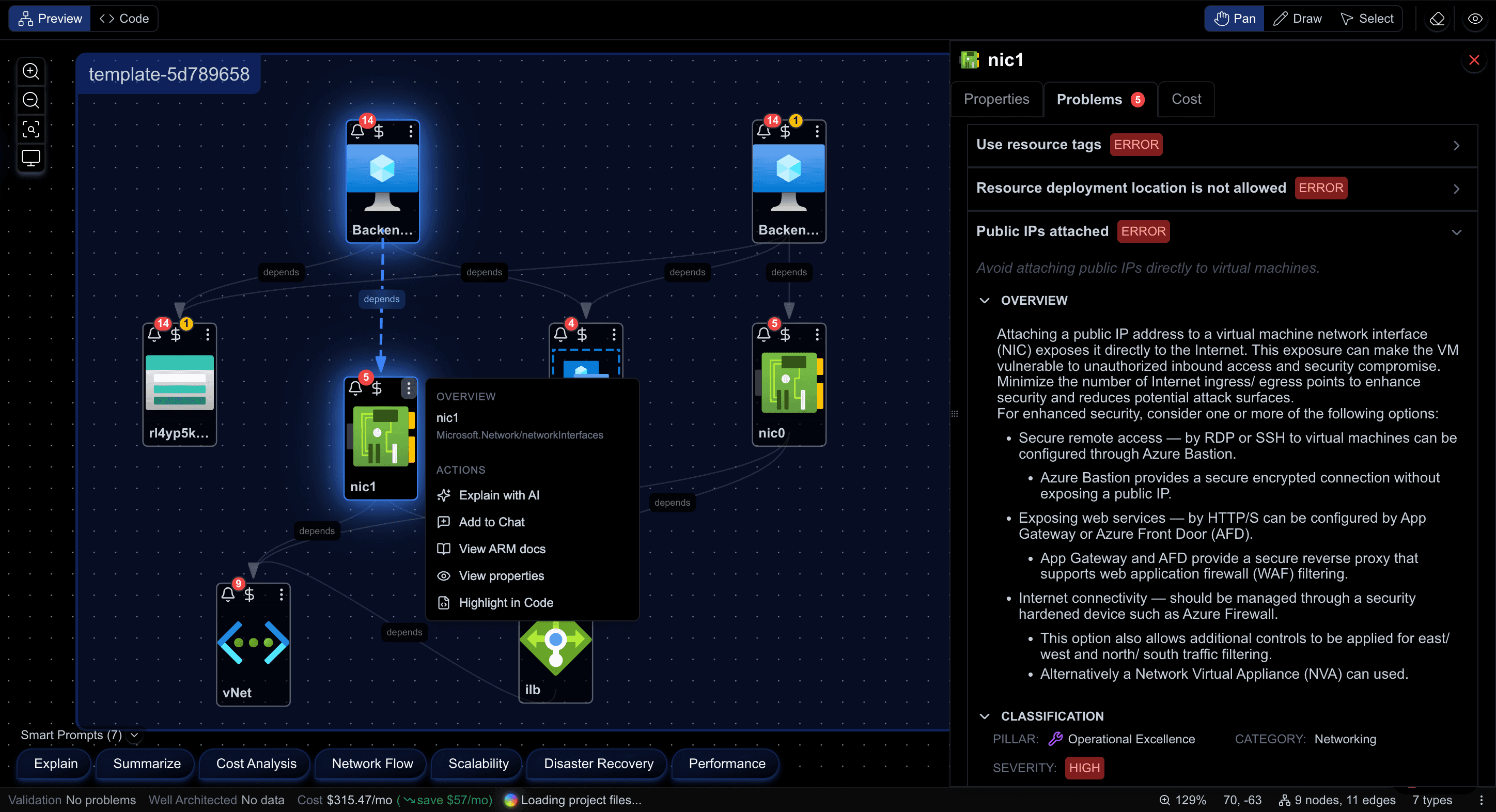
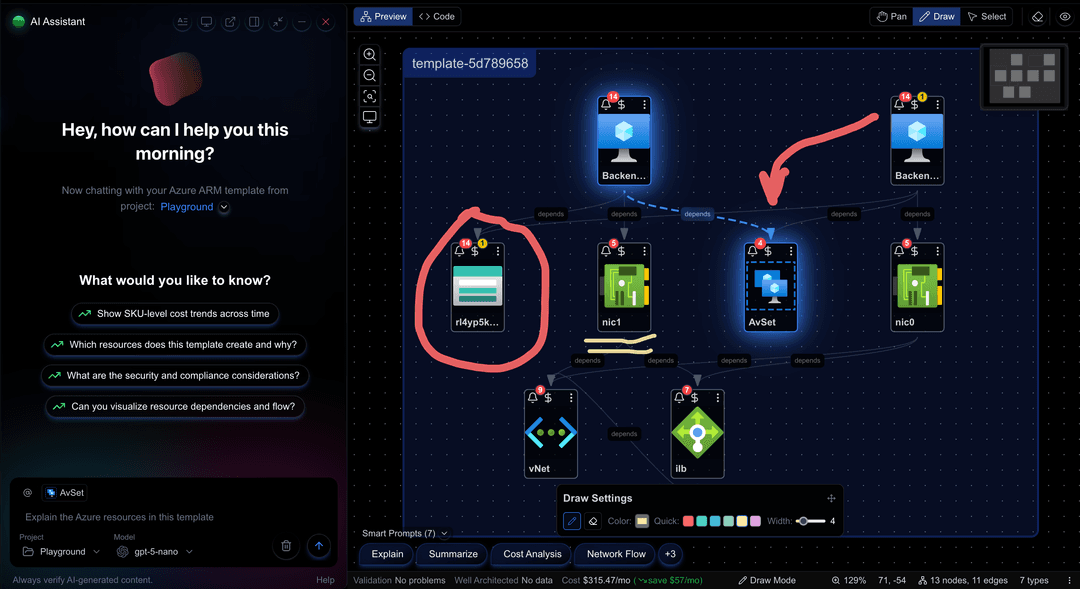
This creates review-ready architecture or dependency diagram images from Cloudeval project context.
What you can expect
A practical path from source input to diagram, report context, docs, exports, and the first AI question to ask.
Start here
Use this to
Create a diagram image from a Cloudeval project in a terminal or automation workflow.
Best source to use
Decide whether the output is private or public before exporting. Keep private by default unless a sanitized share is intentional.
What you need
- Cloudeval CLI installed and authenticated.
- A Cloudeval project ID.
- A chosen layout, format, label setting, and output file.
What you get
- PNG or supported image output.
- A diagram tied to the current project graph.
- A diagram file ready for a report, pull request, or documentation page.
Fastest path to a useful result
- 1Find the project ID.
- 2Choose architecture or dependency layout.
- 3Run the export command with an output path.
- 4Review the file before attaching it anywhere public.
When this works best
Use this for diagrams from existing Cloudeval projects.
Keep exports private unless names, IDs, IPs, and account details are safe to share.
Decision guide
| Check | Cloudeval path | Note |
|---|---|---|
| Input | Project ID plus layout options. | The project graph drives the image. |
| Output | Diagram file for review or docs. | Check labels before sharing. |
| Automation | Non-interactive CLI flags where available. | Good for review packs. |
| Safety | Private by default. | Remove sensitive details before public use. |
Who this is for
- DevOps engineers
- Documentation owners
- Automation authors
- AI agents preparing architecture review packs
How it works
- 1Create or identify a Cloudeval project ID.
- 2Choose the diagram layout, such as architecture or dependency.
- 3Choose an export format supported by the current CLI command.
- 4
Run this command with output and non-interactive flags where appropriate.
shellcloudeval projects export-diagram - 5Attach the exported image to a report, review, pull request, or documentation page.
- 6Avoid exporting private resource details into public locations unless the share is intentional.
Headless diagram export for a review pack
A CI or agent workflow can export an architecture diagram image after creating a Cloudeval project and running reports.
The workflow can attach the image and report links to a review document or pull request discussion.
Terminal and agent workflow
Example: this command.
shellcloudeval projects export-diagram <project-id> --layout architecture --format png --labels all --output architecture.png --non-interactive- Use
--publiconly for explicit public/share graph export workflows. - Agents can call CLI or MCP workflows depending on the configured environment.
How to trust the result
- Run one command manually before putting it into CI or an agent workflow.
- Keep project IDs, account details, IPs, and resource names out of public exports unless they are sanitized.
- Link exported diagrams back to the Cloudeval project or report when reviewers need details.
FAQ
Which layouts can I export?
Cloudeval supports architecture and dependency diagram export workflows for project diagrams.
Can I export private projects without opening the browser?
Yes, private exports can use authenticated CLI access or scoped Cloudeval access keys depending on the environment.
Should public diagram exports be sanitized?
Yes.
Public publishing should remove resource names, IDs, IPs, account metadata, screenshots, and sensitive findings unless they are intentionally public.
Related pages
Build this workflow in Cloudeval
Start with a Cloudeval Azure project, then connect diagrams, reports, source links, CLI automation, and MCP-compatible agent workflows around the same source of truth.